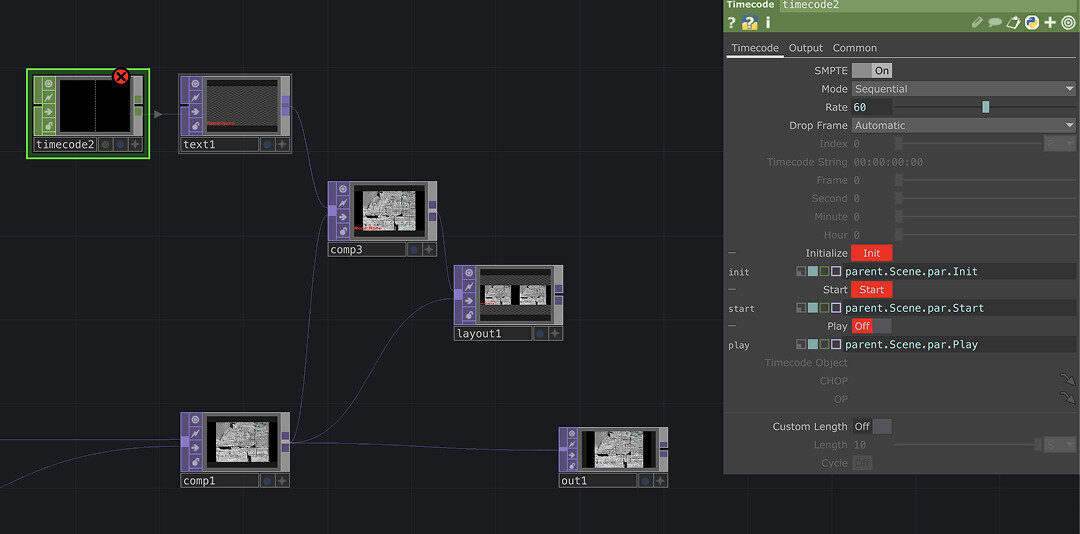
TouchDesigner stands out as a favorite for real-time visual programming, creative coding, and generative design. But for many beginners, its flexibility comes with a steep learning curve. “Why won’t this install?” “My visuals disappeared!” “I keep getting error messages!” If you’ve felt frustrated, know you’re not alone—almost everyone gets stuck at some point. This guide will walk you through the most common beginner problems in TouchDesigner, from installing to seeing your creative ideas come to life. You’ll find practical solutions, debugging steps, and resources to help you troubleshoot with confidence.
1. Installation Headaches: Getting TouchDesigner Running
1.1. Installer Fails or Aborts Early
Symptoms:
- Installation quits before completion
- No error, or vague error messages
Common Causes:
- Lack of access rights to certain folders
- Remnants of previous installations
Solution Steps:
- Restart your computer to clear any lingering access locks.
- If that doesn’t work, reinstall the previous TouchDesigner version, then use Windows “Apps & features” to uninstall it cleanly.
- Try your new installer again.
- For stubborn cases, use a third-party uninstaller (Geekuninstaller, Revo Uninstaller) to remove traces of old versions before installing anew.
“Couldn’t install TouchDesigner until I tracked down what the previous install left behind. Geekuninstaller saved the day.”
Check: https://derivative.ca/UserGuide/Problems_During_Installation
1.2. Windows N/KN Editions – Missing Media Libraries
Symptoms:
- TouchDesigner opens but media components don’t work
- Occasional cryptic error when using audio, movie, or codecs
Common Causes:
- Windows N/KN lacks Windows Media Player and related components by default.
Solution Steps:
- Download and install the official Media Feature Pack for your Windows version.
- Restart and relaunch TouchDesigner.
Check: https://derivative.ca/UserGuide/Troubleshooting
1.3. Post-Install Issues: Program Won’t Launch or Activate
Symptoms:
- TouchDesigner won’t launch after installation
- License/activation fails
Common Causes:
- Access rights issues with folders
- Network or DNS problems
Solution Steps:
- Run TouchDesigner as administrator.
- Check that you have internet access (try disabling VPNs, proxies).
- Ensure your user has permission to write to necessary directories.
2. “My Network Isn’t Working!” – Data Flow Debugging
TouchDesigner’s power is in its ability to wire together CHOPs, TOPs, and SOPs for interactive, generative systems. But when data stops flowing, your visuals grind to a halt.
2.1. DMX, Artnet, and Network Connectivity Headaches
Symptoms:
- Network data not received or sent (lights don’t respond, external devices silent)
- Stuck connections, dropped packets, or unstable control flow
Common Causes:
- Wrong network/broadcast address (should often be 255.255.255.255)
- Local Address settings mismatched
- Firewall blocking TouchDesigner
- Multiple DMX apps conflicting
Solution Steps:
- Set your Local Address in TouchDesigner to your network adapter’s IP. Use 192.168.x.x for home/office routers.
- If on DHCP, a 169.x.x.x address means your network failed—fix connection settings.
- Check Windows Firewall. “Allow” sometimes isn’t enough; try disabling firewall briefly to test.
- Only open one DMX/Artnet app at a time.
- Set the last null TOP in your network to “cook always” so it refreshes even when not displayed.
Check: https://forum.derivative.ca/t/artnet-doesnt-working/272257
2.2. Other Network Data Flow Problems
Symptoms:
- CHOPs or DATs not updating as expected
- Interactive inputs lag or are not recognized
Solution Steps:
- Verify node wiring and that no node is bypassed.
- Right-click any node and select “Force Cook” to manually refresh.
- Use Network Monitor to watch data flow in real time.
3. “My Visuals Are Disappearing!” – Fixing Common Rendering Problems
Nothing breaks creative momentum like a blank output. There are a handful of common render chain traps that catch new users.
3.1. Render TOP Shows Nothing
Symptoms:
- Black window in Render TOP
- Expected objects aren’t visible, especially after following tutorials
Common Causes:
- Geometry missing or outside camera view
- No light sources set up
- Render parameters off (wrong node types, missing connections)
Solution Steps:
- Compare your Render TOP settings line-by-line to a known working example.
- Make sure your Geometry COMP, Camera COMP, and Light COMP are all present and properly wired.
- Verify all objects are inside the camera’s field of view.
Check: https://forum.derivative.ca/t/nothing-showing-up-in-render-top/12517
3.2. Geometry or Visuals Disappear Mid-Session
Symptoms:
- Geometry suddenly vanishes when editing or interacting
- Only part of the scene is visible
Common Causes:
- Accidental node disconnections, parameter changes
- Data types mismatched (float vs integer issues)
- Polygon count or level-of-detail too high for GPU
Solution Steps:
- Undo last changes to check if that fixes the issue.
- Lower LOD or simplify geometry if using complex models.
- Restart TouchDesigner if GPU memory seems maxed out.
“All my geometry disappeared and I couldn’t figure it out. Restarting and resetting a few connections solved it.”
Check: https://forum.derivative.ca/t/geometry-disappears/2653
3.3. Black Screen or Unexpected Artifacts
Symptoms:
- Visuals turn black when using Bloom, LumaBlur, or other effects
- Strange flickering or persistent render artifacts
Common Causes:
- Depth buffer precision too low
- Alpha blending issues or layer ordering problems
- GPU memory/bandwidth exceeded
Solution Steps:
- Increase depth buffer precision if available in your engine settings.
- Tweak alpha blending and layer settings. Make sure you’re not using conflicting formats.
- Try changing render order—sometimes moving a problematic TOP down the chain fixes rendering.
- Monitor GPU load; if consistently maxed out, reduce visual complexity or upgrade hardware.
Check: https://forum.derivative.ca/t/bloom-top-lumablur-artifacts-issue/647599
3.4. Display Problems (Missing UI Tools or Partial Menus)
Symptoms:
- Menus, palettes, or panels vanish or don’t appear
- Toolbar features missing
Common Causes:
- Screen resolution, color depth, or GPU compatibility issues.
- Certain graphics cards/drivers don’t play well with TouchDesigner
Solution Steps:
- Lower resolution and color depth temporarily to test.
- Update your graphics drivers.
- Check the compatibility list for your system/GPU on the TouchDesigner website or forums.
Check: https://forum.derivative.ca/t/display-problem-missing-tools/8154
4. “I’m Getting Error Messages!” – Understanding and Fixing Errors
Error messages are frustrating, but they’re your main clue for fixing problems.
4.1. License Manager or Activation Error
Symptoms:
- “Error fetching data”
- “License retrieval failed”
Common Causes:
- Connectivity issues (proxies, firewall, DNS)
- Lack of write permissions in needed folders
Solution Steps:
- Make sure your computer isn’t behind a proxy and you have a stable connection.
- Run TouchDesigner as administrator or in compatibility mode.
- If all else fails, try the offline activation process or ask for help on the forums (include your OS and error details for faster support).
Check: https://forum.derivative.ca/t/resolved-issue-logging-into-key-manager-error-fetching-data/627407
4.2. Python/Scripting Errors
Symptoms:
- “Script error” or “invalid parameter” messages
- TouchDesigner freezes or crashes when running scripts
Common Causes:
- Typo or syntax mistakes
- Wrong data types or assigning a value to a non-existent parameter
Solution Steps:
- Read the error message carefully—TouchDesigner’s Python interpreter is fairly descriptive.
- Use print debugging—add strategically placed print statements to understand where your script fails.
- Consult Python debugging guides and the TouchDesigner documentation for valid parameter types, error explanations, and code examples.
“When I started, every other Python script threw some kind of error. The print statement and reading error line numbers saved me hours.”
Check: https://interactiveimmersive.io/blog/python/troubleshooting-python-in-touchdesigner/
4.3. Unexpected Errors Without Clear Messages
Symptoms:
- Errors halting execution, but with generic error text
Solution Steps:
- Search the official forums with your error message verbatim; chances are someone else has hit it.
- Try re-downloading or reinstalling the app if you suspect a corrupt install.
- Run diagnostic utilities included in TouchDesigner (see Help > Diagnostics).
- Share your .toe file (project file) on the forums—sometimes a community member can spot the problem in minutes.
5. Resources: Where to Get Help
5.1. Official Documentation
TouchDesigner’s user guide is extensive, with step-by-step troubleshooting for installation, setup, and project errors. Bookmark these pages to quickly reference when you hit problems.
- Installation Troubleshooting: Explains common install errors and fixes.
- Problems After Installation: Guides for post-install bugs and suggestions for clean removal or repair.
- Error Message Glossary: A breakdown of error codes and descriptions.
5.2. Derivative Community Forums
The official forums are lively, with solutions and tips from both new and expert users. If your question isn’t answered yet, post it—be clear about your error, configuration, and what you’ve tried.
Popular categories for beginners:
- Bugs & Problems: Report and solve software issues.
- Beginners: General troubleshooting for first-time coders.
- Python & Scripting: Fix code-related TouchDesigner problems.
Check: https://forum.derivative.ca/
5.3. Blogs and Tutorial Sites
Sites like Interactive Immersive share deep dives into debugging, with clear explanations and real-world scenarios. These are great for learning Python tips, workflow advice, and practical fixes.
“I found a video tutorial that showed exactly what step I kept missing. Downloading their example file made everything so much clearer.”
5.4. Sample .toe Files
Many tutorials and forum threads include downloadable project files for comparison. Opening them and studying how things are wired together is one of the quickest ways to learn—and debug your own projects.
5.5. Social Channels and Artist Communities
TouchDesigner is popular on Reddit, Discord, and Twitter (formerly X). Use hashtags like #TouchDesignerHelp or #TouchDesignerTroubleshoot to find current conversations or quick answers from the global creative coders community.
https://www.reddit.com/r/TouchDesigner
6. Final Thoughts: Learning Through Debugging
There’s a uniquely satisfying moment when a stubborn error vanishes, your visuals burst onto the screen, or your interactive network finally works. TouchDesigner is powerful because it is customizable and open—but this means you will encounter challenges. Treat problems as creative opportunities. Each error you fix builds your confidence and understanding. As your skill grows, you’ll also gain the ability to debug others’ projects, contribute to the community, and unlock your creative ambitions.
If you’re stuck:
- Restart and observe: The basics fix more than you’d expect.
- Compare with working examples: Use sample files and tutorials as reference points.
- Read the error logs/data closely: The answer is often in the message.
- Use community resources. Don’t be afraid to ask for help or share your challenges.
Start troubleshooting with confidence—and keep creating. You’re not just learning software, you’re building a toolkit for creative problem solving!
Written for creative coders, visual artists, and designers who want to go from frustration to flow in TouchDesigner. Bookmark this guide, share your successes, and keep exploring—all the answers you need are out there in the community, and every challenge is a step towards mastery.